| Provider Type(s) for Which These Instructions Apply | Program(s) for Which These Instructions Apply |
|---|---|
| All Providers Administrative Staff | All Programs |
This process must be followed whenever a worker leaves the agency and their Worker Record needs to be inactivated in Harmony.
If the worker has system login access, an Access Request must also be submitted with a request to deactivate the user to ensure their system access is properly removed.
- Login to Harmony using the Provider Prime role
- Select the Providers Chapter

- Select the desired Provider record
*If the user is only associated with one provider the record will open automatically.
- Select the Workers Tab

- Select the Worker record that needs to be inactivated

- Uncheck the box next to “Active”
Make a comment regarding the reason for inactivating the worker record AND the effective date
Click “Append Text to Note”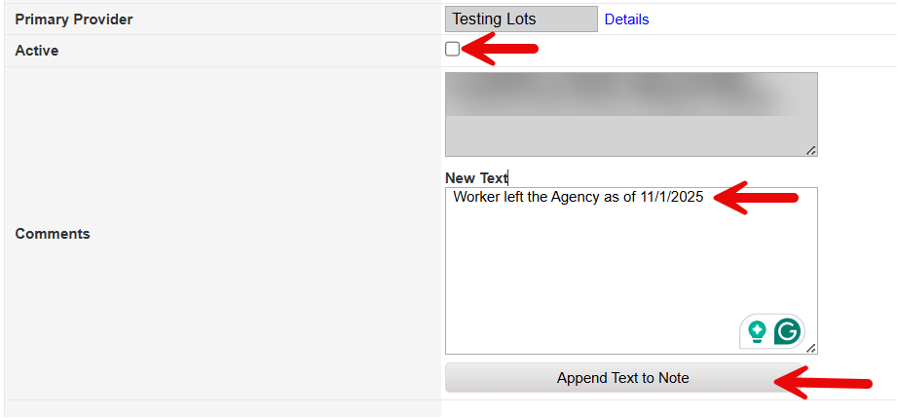
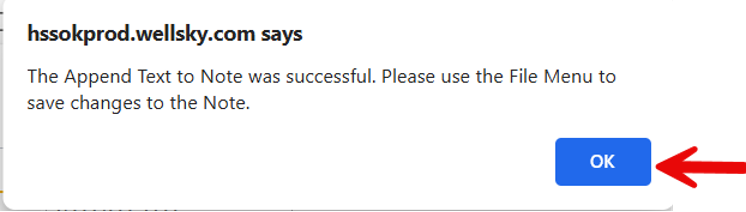
- Select “OK” on the pop-up message
- Hover over “File”
Select “Save and Close Worker”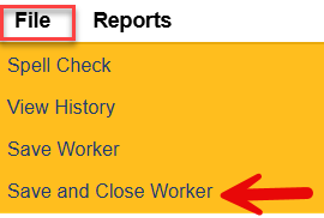
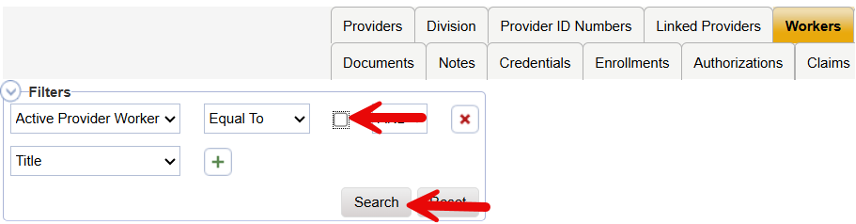
Note: If an inactivated Worker Record needs to be accessed at a later time, proceed through the following steps in the Workers Tab:
a) Uncheck the checkbox in the filter area
b) Select “Search”
This will display all inactivated Worker Records for the agency