| Provider Type(s) for Which These Instructions Apply | Program(s) for Which These Instructions Apply |
|---|---|
| All Providers | All Programs |
This process will be used as a guide for submission of Critical Incidents. All Critical Incidents must be submitted within 1 business day of knowledge of the incident.
- Navigate to the PQ Chapter

- Hover over “File”
Select “Add PQ”
- Complete the blank field(s) of the record
Select Program of “ADvantage”
Click the box with the three dots ( … ) next to “Select User’s Provider Record”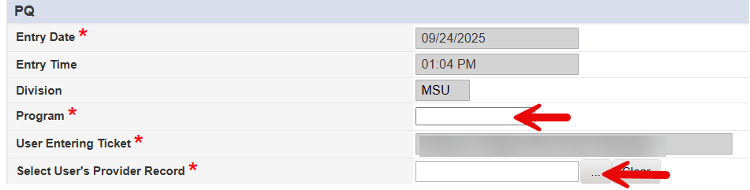
Type in a minimum of the first 3 letters of the Provider you are associated with
Click on “Search”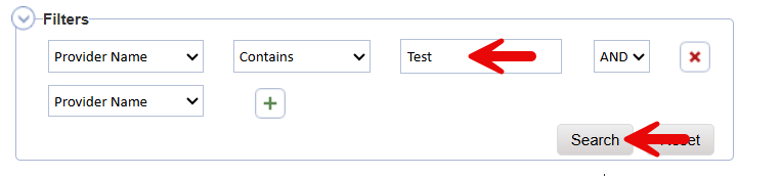
Select the appropriate record from the list
*The user must select the Provider Name and branch that are associated with the Member’s Provider Enrollments
Select “Critical Incident” with the appropriate program (ADv, LC, MFW, SPPC)
Select the appropriate “Critical Incident Category”
If the Case Manager is not the user submitting the Critical Incident, the user should click on “Lookup”, then search for the appropriate Case Manager, and select the correct Case Manager record.
*The Case Manager name is located on the Division Tab of the Member record.
Update Review Priority = “Priority Review”
Update “Status” to the appropriate “ADv/LC/MFW CI – CM Investigative Report Needed” listing
*If Member is on SPPC, the Status would be left in a status of “Pending”.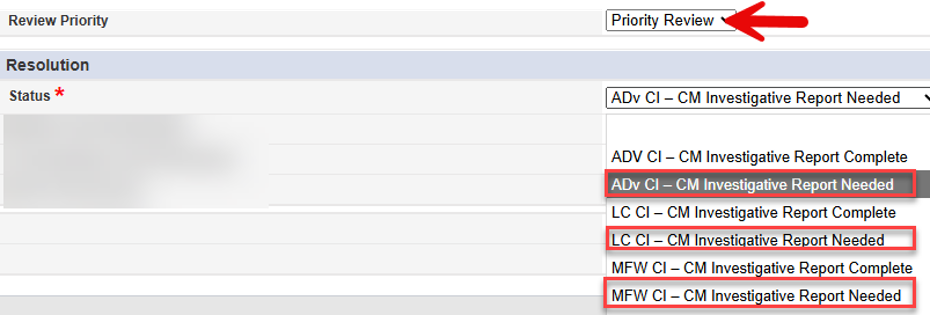
- Hover over “File”
Select “Save PQ”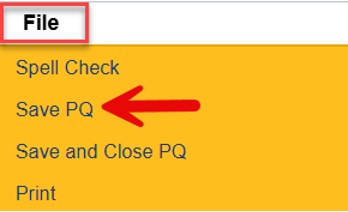
- Select “Member” Sub-Tab
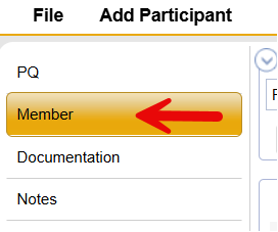
Hover over “Add Participant” on the menu bar
Select “Member Participant”
Hover over “Tools” on the menu bar
Select “Search for Person”
* If the next step does not populate, please check your browser settings to ensure that pop-up blockers are disabled for the Harmony site. If you need assistance adjusting these settings, contact your supervisor or your Agency’s IT department.
Click on the +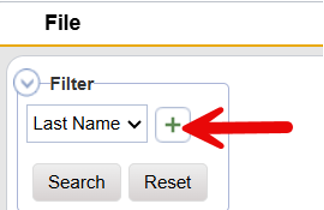
Type in the Member last name in the blank box
*Member last name must be spelled exactly as it is on their provider record.
Click on Search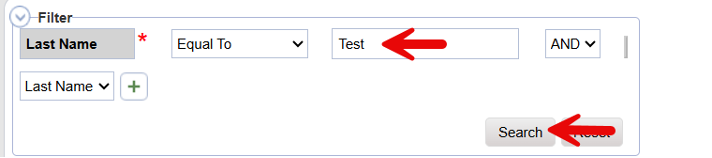
Select the appropriate Member record from the list
Click on the circle in front of “Link to Participant”
*Do not select “Overwrite Participant Data”
Select “OK”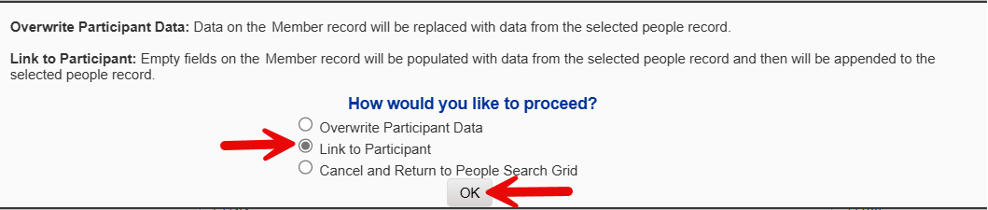
Hover over “File”
Select “Save and Close Member”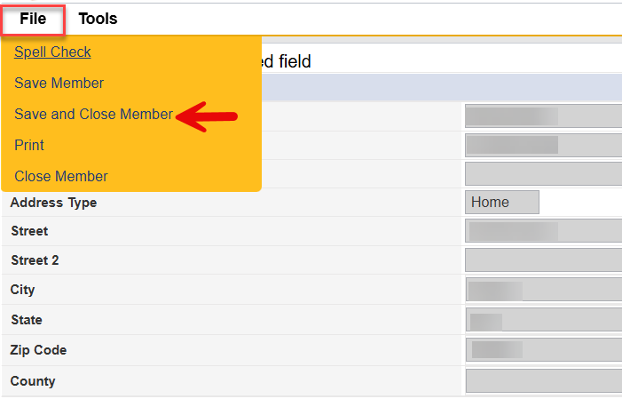
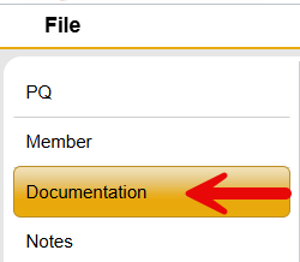
- Select “Documentation” Sub-Tab
Hover over “File” from the Menu Bar
Select “Add Documentation”
Select “ADv/LC/MFW – Critical Incident Report”
*If the Member is on the SPPC Program, “SPPC – Critical Incident Report” should be used.
Complete the form with all appropriate information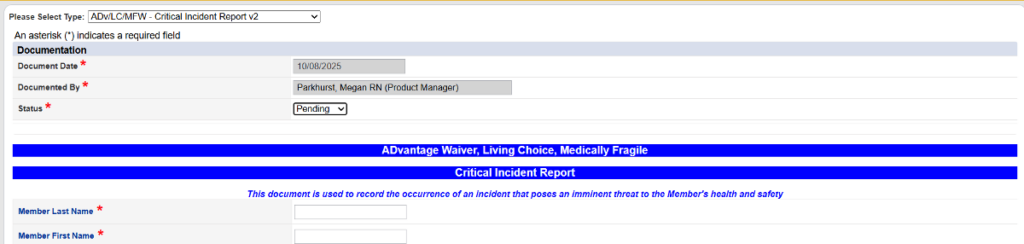
Update the status in the header to “Complete” once all required documentation has been entered.
* The document may be saved with a status of ‘Draft’ if the user needs to pause and gather additional information; however, it must be set to ‘Complete’ before submitting the Critical Incident.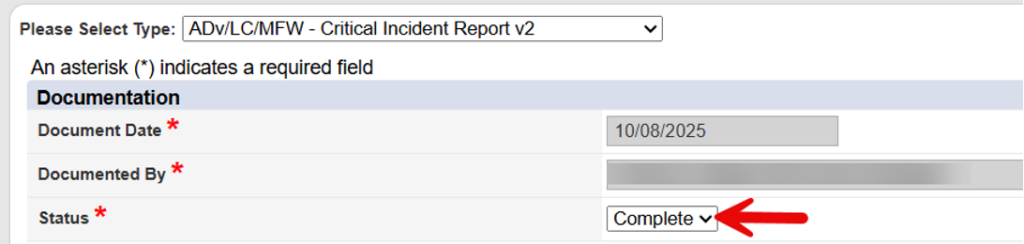
Hover over “File” from the menu bar
Select “Save and Close Documentation”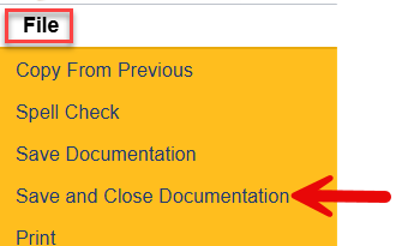
- Select “Notes” Sub-Tab
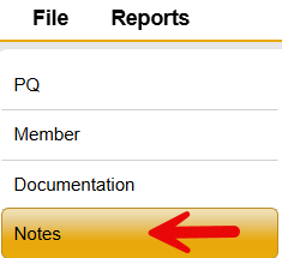
Hover over “File” from the menu bar
Select “Add Note”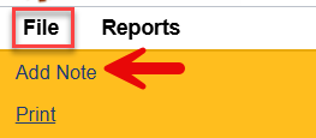
Select Note Sub-Type of “CI – Critical Incident Reported”
Update Status to “Complete”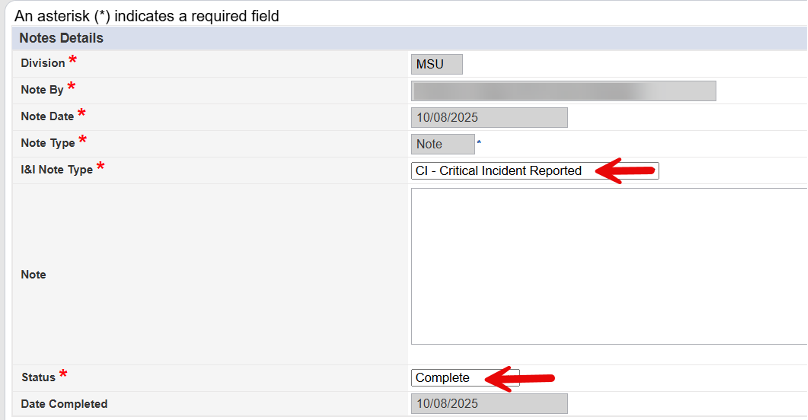
*When the I&I Note Type ‘CI – Critical Incident Reported’ is selected and the note is saved and closed, a tickler is automatically sent to the Harmony user’s assigned supervisor as listed on their worker record. Follow Management of Worker Record instructions to update the supervisor listing as needed.
Hover over “File” from the menu bar
Select “Save and Close Note”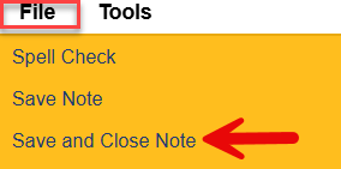
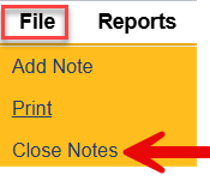
Hover over “File” from the menu bar
Select “Close Notes” to exit the PQ Ticket