| Provider Type(s) for Which These Instructions Apply | Program(s) for Which These Instructions Apply |
|---|---|
| All Providers Administrative Staff | All Programs |
This process must be followed whenever an agency needs to add a Worker Record to Harmony. Although certain staff, such as PCAs, may require a Worker Record, this does not automatically grant them access to the system. The creation of a Worker Record does not generate system login credentials, and an Access Request must still be submitted for any individual who requires access to log in and perform work within the system.
- Login to Harmony using the Provider Prime role
- Select the Providers Chapter

- Select the desired Provider record
*If the user is only associated with one provider the record will open automatically.
- Select the Workers Tab

- Hover over “File”
Select “Add New Worker Search”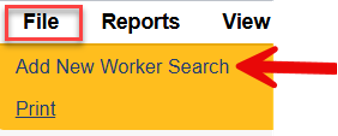
- Type in the full last name of the worker that needs a worker record added
Click on “Search”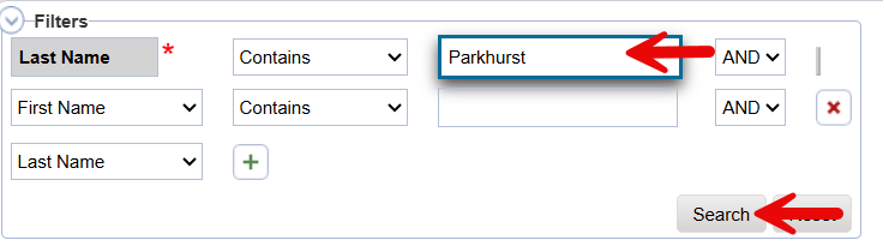
- Review the search results to determine whether the worker you are attempting to add already has a record associated with your agency listed in the First Name column.
If a record exists with your agency listed, select that record and continue using the existing Worker Record, then proceed to Step 9.
If a record appears with another agency listed in the First Name column, do not use that record; instead, proceed to Step 8, as Worker Records belonging to other agencies are not appropriate for use.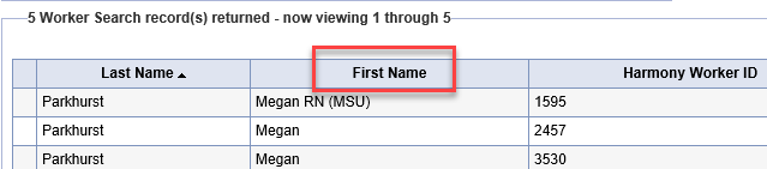
- Select “Add New”
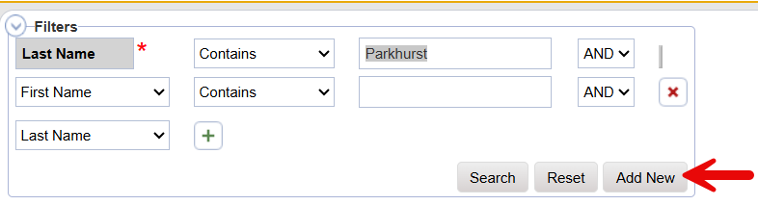
- Update any fields as appropriate
*The First Name and Supervisor fields are required.
**The First Name should match the name that is used on the access request form if access will be requested for the worker.
***It is encouraged to also add a phone number and email for the worker.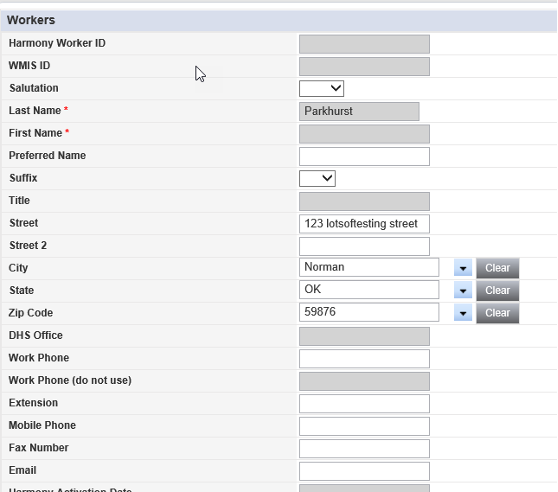
- Hover over “File”
Select “Save and Close Worker”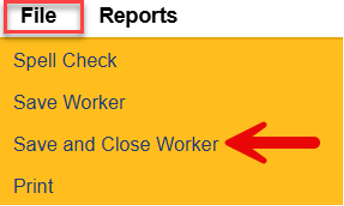
*If needing to add information to the worker Sub-Tabs, “Save Worker” may be used to expose the Sub-Tabs and remain in the worker record.
Note: The new worker record is now added to the system and can be assessed from the list view of the Workers Tab