| Provider Type(s) for Which These Instructions Apply | Program(s) for Which These Instructions Apply |
|---|---|
| All Providers | All Programs |
ADvantage, Medically Fragile and Living Choice this process will be used by both the Case Manager and other Non-Case Manager users anytime a Member Suspension of services is needed.
SPPC this process will be used by the Home Care Agency
*Click on your role to navigate to the appropriate instruction section.
Case Manager (ADvantage, Medically Fragile, Living Choice) OR Home Care Agency (SPPC) Actions
- Open the Member Record
- Select the Provider Enrollments Tab

- Click on the first Provider record.
Note: Provider records that include OKDHS or OHCA in the name should not be updated by Case Managers.
- Update the “Member Status to Provider” to reflect “Suspended”
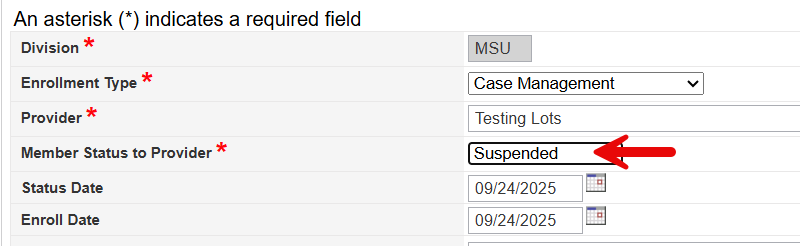
- Hover over “File”
Select “Save and Close Provider”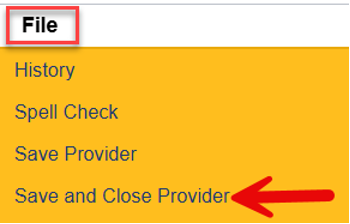
- If there are additional “Open” Provider records, repeat steps 3 to 5.
- Hover over “Reports” on the Menu bar
Select “Case Processor by Provider”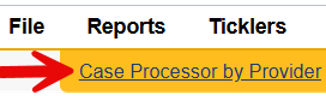
- Navigate to the Notes Tab in the Member Record

- Add a Note
- Note Type = Service Suspension, Note Sub-Type = use the appropriate reason for the suspension
- Make sure to add all Case Processors listed on the “Case Processor by Provider” report as a Note Recipient.
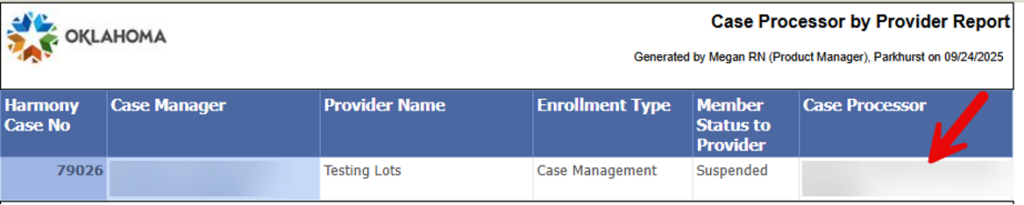
- Living Choice and Medically Fragile Waiver cases – The OKDHS or OHCA Team Member should be added as a Note Recipient.
- ADvantage and SPPC cases – The OKDHS Team Member should not be added as a Note Recipient.
- Navigate to the Event History Tab and add an Event Detail
Non-Case Manager Actions
- If notified of a suspension via a note from the Case Manager, the user must ensure that services are suspended in accordance with their agency’s internal procedures.
OR
If the user is the first to identify the need for a service suspension, the following steps should be followed: - Navigate to the Division Tab

- Review the record for the assigned Case Manager

- Navigate to the Notes Tab

- Add a Note
- Note Type = Notification, Note Sub-Type = Request for Service Suspension
- Make sure the Case Manager identified on the Division Tab is added as a Note Recipient