Clear Cache and Browser History

Updated on: 05/14/2026

Provider Type(s) for Which These Instructions ApplyProvider Type(s) for Which These Instructions Apply
All Harmony UsersAll Programs

If the user experiences any issues in the Harmony system, especially after a new version has been deployed, it is recommended to clear the browser’s cache and history.

Follow the steps below based on your browser (Microsoft Edge or Google Chrome).

Microsoft Edge

Follow the steps below to clear the cache and browser history in Microsoft Edge.

  • Open an Edge browser.
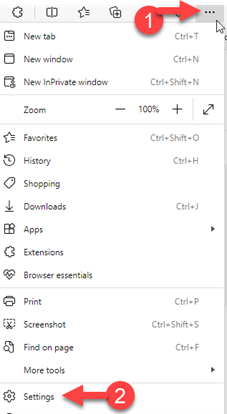
  • Step 1 – Select “Settings and More,” which appears as three dots in the upper right-hand corner of the screen.
  • Step 2 – Go to Settings.
    Microsoft Edge browser menu showing options including New tab, New window, New InPrivate window, Zoom, Favorites, History, Shopping, Downloads, Apps, Extensions, Browser essentials, Print, Screenshot, Find on page, More tools, and Settings. Red circled number 1 points to the three-dot menu icon in the toolbar, and red circled number 2 with arrow points to the Settings option.
  • Step 3 – Select “Privacy, search, and services” from the left-hand side menu.
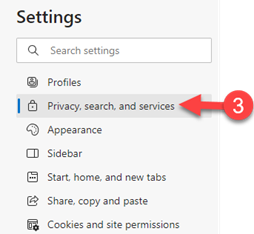
    Microsoft Edge Settings page left navigation panel showing options including Profiles, Privacy search and services (with red circled number 3 and arrow pointing to it), Appearance, Sidebar, Start home and new tabs, Share copy and paste, and Cookies and site permissions.
  • Step 4 – Go to Clear browsing data and select “Choose what to clear”.
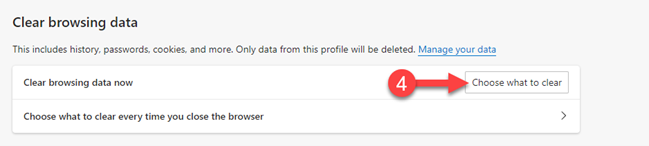
    Microsoft Edge Clear browsing data section showing description “This includes history, passwords, cookies, and more. Only data from this profile will be deleted” with Manage your data link. Shows “Clear browsing data now” option with red circled number 4 and arrow pointing to “Choose what to clear” button, and “Choose what to clear every time you close the browser” option below.
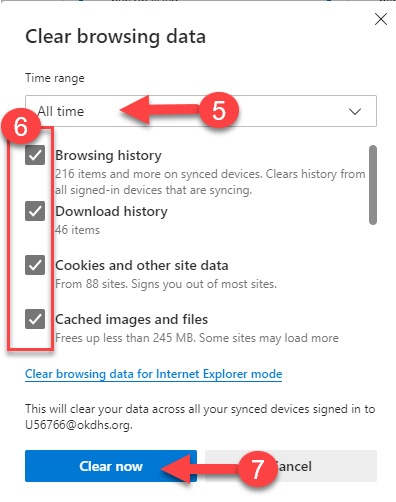
  • Step 5 – Select “All Time” from the Time Range drop down.
  • Step 6 – Make sure all boxes are checked (may need to scroll down to view all boxes). (Passwords can be left unchecked if the user doesn’t want those to clear).
  • Step 7 – Select “Clear now”.
    Microsoft Edge Clear browsing data dialog showing Time range dropdown set to “All time” (red circled number 5 with arrow), checkboxes for data types (red circled number 6 pointing to checkbox column): Browsing history (checked), Download history (checked), Cookies and other site data (checked), Cached images and files (checked). Shows link for “Clear browsing data for Internet Explorer mode” and note about clearing data across synced devices. Red circled number 7 with arrow points to “Clear now” button, with Cancel button beside it.
  • Close all Edge windows (tabs) and reboot computer.

Google Chrome

Follow the steps below to clear the cache and browser history in Google Chrome.

  • Open a Chrome browser.
  • Step 1 – Select More (three dots) in the upper right-hand corner of the screen.
  • Step 2 – Choose Settings from the menu.
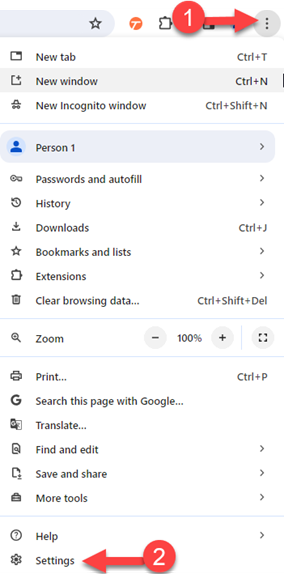
    Google Chrome browser menu showing options including New tab, New window, New Incognito window, Person 1, Passwords and autofill, History, Downloads, Bookmarks and lists, Extensions, Clear browsing data, Zoom, Print, Search this page with Google, Translate, Find and edit, Save and share, More tools, Help, and Settings. Red circled number 1 points to the three-dot menu icon in the toolbar, and red circled number 2 with arrow points to the Settings option.
  • Step 3 – Select “Privacy and security” from the left-hand side menu.
  • Step 4 – Select “Delete browsing data”.
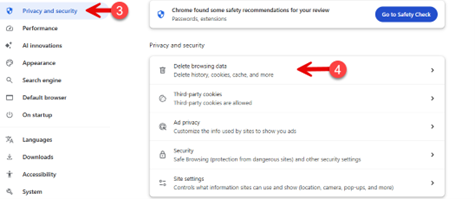
    Google Chrome Settings page showing left navigation with Privacy and security option (red circled number 3 with arrow pointing to it), Performance, AI innovations, Appearance, Search engine, Default browser, On startup, Languages, Downloads, Accessibility, and System options. Main content area shows Chrome safety recommendations notification, and Privacy and security section with Delete browsing data option (red circled number 4 with arrow pointing to it), Third-party cookies, Ad privacy, Security, and Site settings options.
  • Step 5 – Select “All Time” from the Time Range.
  • Step 6 – Make sure all boxes are checked (use show more to see all options). (Passwords can be left unchecked if the user doesn’t want those to clear).
  • Step 7 – Select “Delete from this device”.
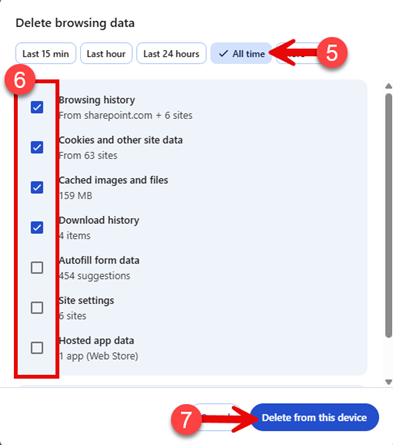
    Google Chrome Delete browsing data dialog showing time range buttons: Last 15 min, Last hour, Last 24 hours, and All time (selected, with checkmark, red circled number 5 with arrow pointing to it). Checkboxes for data types (red circled number 6 pointing to checkbox column): Browsing history (checked), Cookies and other site data (checked), Cached images and files (checked), Download history (checked), Autofill form data (unchecked), Site settings (unchecked), Hosted app data (unchecked). Red circled number 7 with arrow points to blue “Delete from this device” button at bottom.
  • Close all Chrome windows (tabs) and reboot computer.

Submit a content change request
Report a mistake or suggest an edit