| Provider Type(s) for Which These Instructions Apply | Program(s) for Which These Instructions Apply |
|---|---|
| Case Management Home Care Assisted Living | All Programs |
ADvantage, Medically Fragile and Living Choice Programs: This process will be used by both the Case Manager and Home Care/Assisted Living Nurse anytime a Medication is added to, updated, or inactivated in a Member’s record.
SPPC Program: This process will be used by the Home Care Nurse.
Guidance for Responsibility of Medications Tab:
- If an Interdisciplinary Team (IDT) visit involves both the Case Manager and the Home Care/Assisted Living Nurse, the Home Care/Assisted Living Nurse is responsible for completing any necessary updates to the Medications tab in the Member’s record.
- If a Member receives Skilled Nursing Services for medication planner fills, the Home Care/Assisted Living Nurse should be the only individual responsible for making updates to the Medications Tab. This ensures the accuracy of the medication record and that the medication planner is filled appropriately.
- If a Member is not receiving Skilled Nursing Services for medication planner fills and the visit is conducted by a single discipline (either the Case Manager or the Home Care/Assisted Living Nurse), the individual conducting the visit is responsible for updating the Medications Tab, as appropriate.
Adding a Medication
- Open the Member Record.
- Select the Medications Tab.

- Hover over “File” on the Menu bar.
Select “Add Medication”.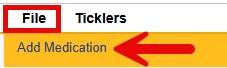
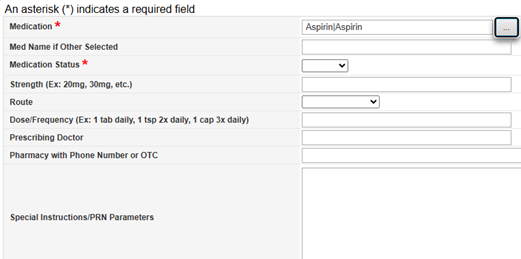
- Click on the Ellipsis.

- Type the first 3 letters of the medication name into the search area.

- Select the appropriate name of the medication from the list.

- If the medication isn’t displayed as an option, type “other” in the search area and then type in the name of the medication.


- Complete the remaining Medication fields.
- Hover over “File”.
Select “Save and Close Medication”.
“Save and Add Another Medication” may be selected if there are additional medications to add to the record.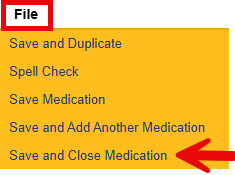
Updating a Medication
- Open the Member Record.
- Select the Medications Tab.

- Select the medication that requires an update from the list.

- Update the details of the medication, as appropriate.
The following example was changed from 1 tab daily to 1 tab 2x daily.
The medication name itself should not be changed. Only the strength, route, dose/frequency, prescribing provider, or pharmacy should be updated, as appropriate.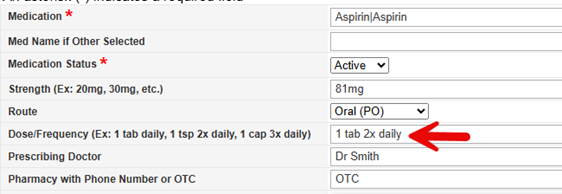
- Hover over “File”.
Select “Save and Close Medication”.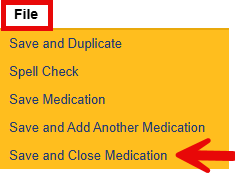
Note: To view changes for a specific medication, select it from the list view, then navigate to File > History to review its history records.
Inactivating a Medication
- Open the Member Record.
- Select the Medications Tab.
- Select the medication that needs to be inactivated from the list.

- Update the Medication Status to “Inactive”.
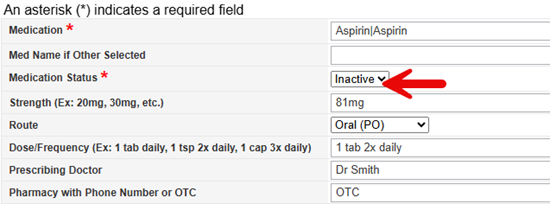
- Hover over “File”.
Select “Save and Close Medication”.
Viewing Inactive Medications
- Open the Member Record.
- Select the Medications Tab.
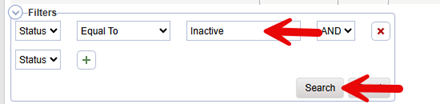
- In the Filters section, set the “Status/Equal To” field to “Inactive”.
Click on “Search”.