Request for Additional CM Units

Updated on: 06/15/2026

Provider Type(s) for Which These Instructions ApplyProgram(s) for Which These Instructions Apply
Case ManagementADvantage  

Case Management (CM) services assist a Member in gaining access to medical, social, educational, or other services, regardless of payment source of services, that may benefit the Member in maintaining health and safety.  Case Managers initiate and oversee necessary reassessments to re-establish waiver program eligibility.  A billable case management activity is any task or function defined under OAC 314:30-5-763(1)(A) that only an ADvantage case manager because of skill, training or authority can perform on behalf of a Member.  Ancillary activities such as clerical tasks like mailing letters, making copies, filing, faxing, drive time or supervisory/administrative activities are not billable case management activities.  The administrative cost of these activities and other normal and customary business overhead costs have been included in the reimbursement of rate for billable activities.

The Request for Additional Case Management Units form is required to be completed and submitted in order to request additional CM units.  References to other areas of the system or other forms will not be accepted. 

Request for Additional CM Units

  1. Using Provider Plus or Provider Prime role in Harmony
  2. Open the Member Record
  3. Select the Documents Tab
    Harmony Member Record navigation tabs showing two rows including Diagnosis, Payers, Medical Eligibility, Medications, Auths, Activities, Relations, Event History, Demographics, Division, Programs, Provider Enrollments, Plans, and Notes, with a red arrow pointing to the Documents tab.
  4. Hover over “File” on the Menu bar
    Select “Add Document”
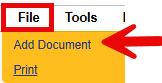
    Menu bar showing File and Tools options, with a red arrow pointing to “Add Document” option and Print option below.
  5. Select “ADv – Request for additional CM Units

    Document type selection showing “Please Select Type” label with dropdown set to “ADv - Request for Additional CM Units v2” (red arrow pointing to the dropdown).
  6. Fill out the document
    Update the Document Status = “Complete” once all documentation is added
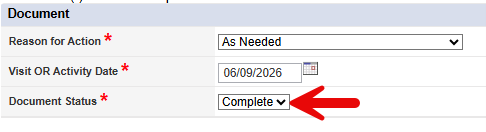
    Document form showing required fields: Reason for Action (set to “As Needed”), Visit OR Activity Date (06/09/2026), and Document Status (set to “Complete” with red arrow pointing to it).
  7. Hover over “File” on the Menu bar
    Select “Save and Close Document”
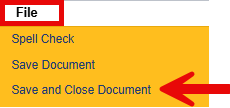
    File menu expanded showing Spell Check, Save Document, and Save and Close Document options, with a red arrow pointing to “Save and Close Document”.
  8. Select the Plans Tab
    Harmony Member Record navigation tabs showing two rows including Diagnosis, Payers, Medical Eligibility, Medications, Auths, Activities, Relations, Event History, Demographics, Division, Programs, Provider Enrollments, and Documents, with a red arrow pointing to the Plans tab.
  9. Open the plan that contains the Authorization that needs additional units added
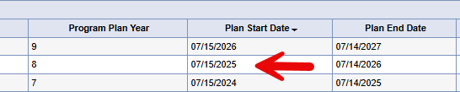
    Plans list table showing columns for Program Plan Year, Plan Start Date, and Plan End Date, with rows for Plan Year 9 (07/15/2026 to 07/14/2027), Plan Year 8 (07/15/2025 to 07/14/2026, with red arrow pointing to it), and Plan Year 7 (07/15/2024 to 07/14/2025).
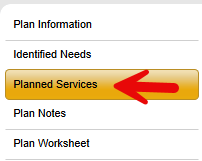
  10. Open the Planned Services Sub-Tab
    Plan left navigation menu showing Plan Information, Identified Needs, Planned Services (highlighted, with red arrow pointing to it), Plan Notes, and Plan Worksheet options.
  11. Select the T1016 line that needs additional units added
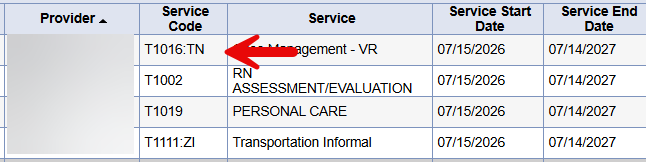
    Planned Services table showing columns for Provider, Service Code, Service, Service Start Date, and Service End Date, with rows including T1016:TN Case Management - VR (red arrow pointing to it, 07/15/2026 to 07/14/2027), T1002 RN Assessment/Evaluation, T1019 Personal Care, and T1111:ZI Transportation Informal.
  12. Update the SPA Review Status = Additional CM Units Request (Provider Use Only)

    Planned Service form showing SPA Review dropdown set to “Additional CM Units Request (Provider Use Only)” (red arrow pointing to it) and Clinical Review dropdown below.
  13. In the New Text box type in a comment to indicate the number of additional units being requested
    Select “Append Text to Note”
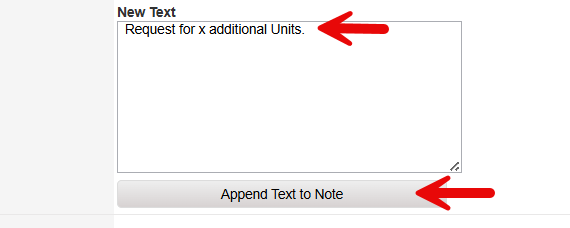
    New Text section showing a text box containing “Request for x additional Units.” (red arrow pointing to the text) and an “Append Text to Note” button below (red arrow pointing to the button).
  14. Hover over “File” on the Menu bar
    Select “Save and Close Planned Services”
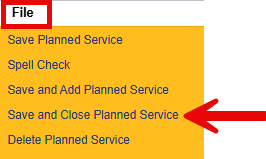
    File menu expanded showing Save Planned Service, Spell Check, Save and Add Planned Service, Save and Close Planned Service (with red arrow pointing to it), and Delete Planned Service options.
  15. Hover over “File” on the Menu bar
    Select “Close Planned Services
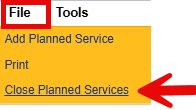
    File menu expanded showing Tools option, Add Planned Service, Print, and Close Planned Services (with red arrow pointing to it).

Misc. Information:

  • The Medicaid Services Unit (MSU) will be notified on a report that the planned service was updated to “Additional CM Units Request (Provider Use Only)”.
  • The Plan Status should not be updated, only the Planned Service as shown above.
  • A new T1016 line should not be added when there is already an existing authorized service line for your agency.
  • Please give at least 30 days for the request to be processed.
  • The Provider should monitor the “Authorizations New/Changed” report to see when the authorization is updated with the additional units.

Submit a content change request
Report a mistake or suggest an edit