| Provider Type(s) for Which These Instructions Apply | Provider Type(s) for Which These Instructions Apply |
|---|---|
| All Harmony Users | All Programs |
If the user experiences any issues in the Harmony system, especially after a new version has been deployed, it is recommended to clear the browser’s cache and history.
Follow the steps below based on your browser (Microsoft Edge or Google Chrome).
Microsoft Edge
Follow the steps below to clear the cache and browser history in Microsoft Edge.
- Open an Edge browser.
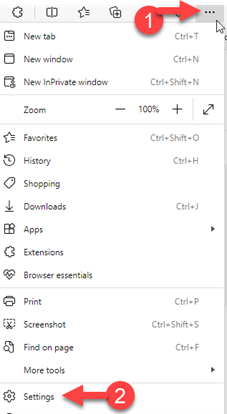
- Step 1 – Select “Settings and More,” which appears as three dots in the upper right-hand corner of the screen.
- Step 2 – Go to Settings.
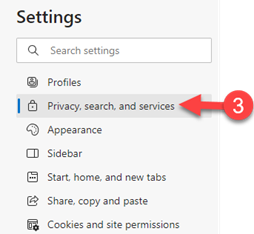
- Step 3 – Select “Privacy, search, and services” from the left-hand side menu.
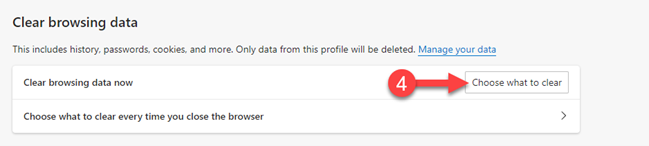
- Step 4 – Go to Clear browsing data and select “Choose what to clear”.
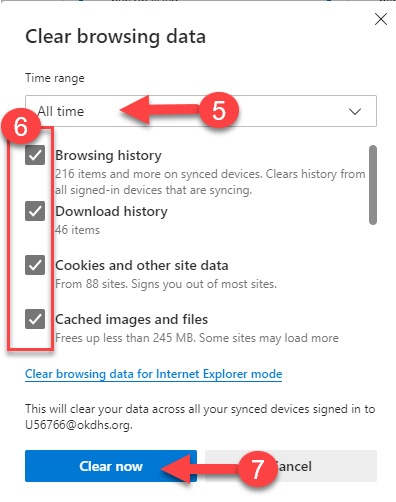
- Step 5 – Select “All Time” from the Time Range drop down.
- Step 6 – Make sure all boxes are checked (may need to scroll down to view all boxes). (Passwords can be left unchecked if the user doesn’t want those to clear).
- Step 7 – Select “Clear now”.
- Close all Edge windows (tabs) and reboot computer.
Google Chrome
Follow the steps below to clear the cache and browser history in Google Chrome.
- Open a Chrome browser.
- Step 1 – Select More (three dots) in the upper right-hand corner of the screen.
- Step 2 – Choose Settings from the menu.
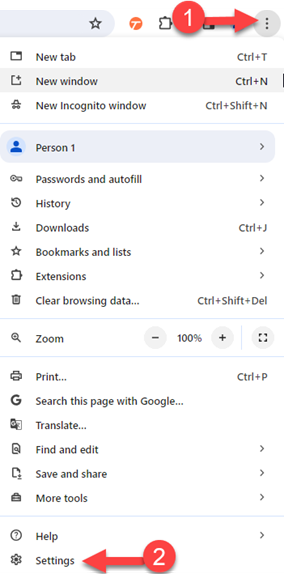
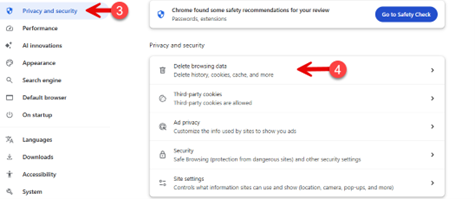
- Step 3 – Select “Privacy and security” from the left-hand side menu.
- Step 4 – Select “Delete browsing data”.
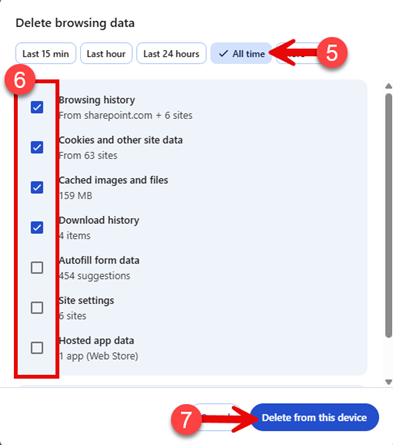
- Step 5 – Select “All Time” from the Time Range.
- Step 6 – Make sure all boxes are checked (use show more to see all options). (Passwords can be left unchecked if the user doesn’t want those to clear).
- Step 7 – Select “Delete from this device”.
- Close all Chrome windows (tabs) and reboot computer.