LPN Completed Nurse Visit

Updated on: 03/05/2026

Provider Type(s) for Which These Instructions ApplyProgram(s) for Which These Instructions Apply
Home Care LPN’sAll Programs

This process will be followed whenever an LPN completes a nursing assessment to notify the RN that the assessment documentation has been completed.

  1. LPN completes the current version of the “Nurse Evaluation” on the Documents Tab of the Member Record.

Harmony Member Record navigation tabs showing two rows of tabs including Diagnosis, Payers, Medical Eligibility, Medications, Auths, Activities, Relations, Event History, Demographics, Division, Programs, Provider Enrollments, with a red arrow pointing to the Documents tab.
  1. After the Nurse Evaluation documentation is completed, the LPN will navigate to the Notes Tab of the Member Record.

Harmony Member Record navigation tabs showing two rows of tabs including Diagnosis, Payers, Medical Eligibility, Medications, Auths, Activities, Relations, Event History, Demographics, Division, Programs, Provider Enrollments, Documents, Plans, with a red arrow pointing to the Notes tab.
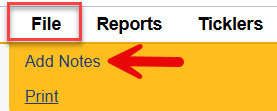
  1. Hover over “File”
    Select “Add Notes”
File menu expanded showing options including Add Notes (with red arrow pointing to it), Reports, Ticklers, and Print.
  1. Select the appropriate program
    Select Note Type = Notification
    Select Note Sub-Type = LPN Visit Completed
    Select Note Status = Communication
    Add any relevant findings or observations from the nurse evaluation that the RN should be made aware of in the Note field.
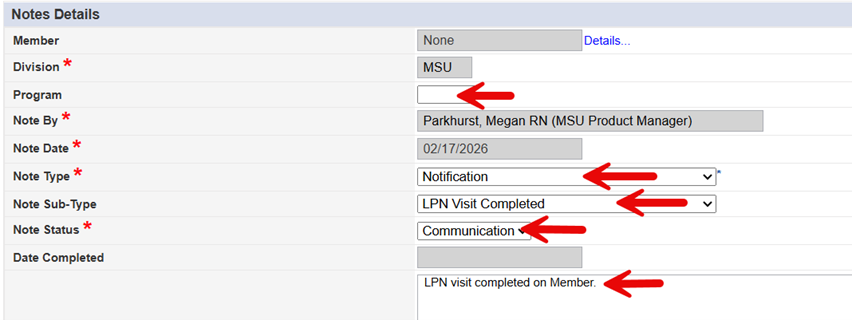
Notes Details form showing fields for Member, Division, Program (with red arrow), Note By, Note Date, Note Type set to “Notification” (with red arrow), Note Sub-Type set to “LPN Visit Completed” (with red arrow), Note Status set to “Communication” (with red arrow), Date Completed, and a Note text field containing “LPN visit completed on Member.” (with red arrow).
  1. Scroll down to the “Note Recipients” section
    Click on the “Lookup” button

Note Recipients section showing Add Note Recipient field with a text box and a red arrow pointing to the Lookup button.
  1. Type in the first 3 letters of the RN’s last name that needs to be made aware of the completed LPN visit.
    Select “Search”
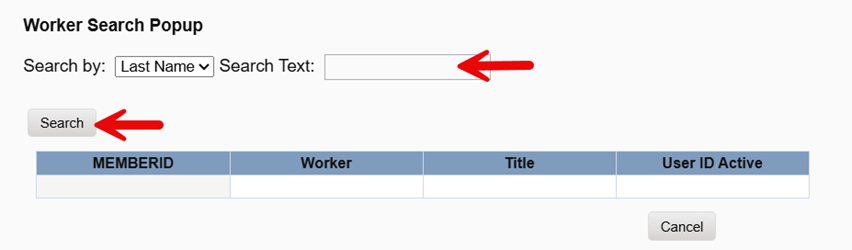
Worker Search Popup dialog showing Search by dropdown set to Last Name, Search Text field (with red arrow), Search button (with red arrow), and a results table with columns for MEMBER ID, Worker, Title, and User ID Active.
  1. Select the appropriate worker from the list
    *Make sure the “User ID Active” column indicates “Yes”
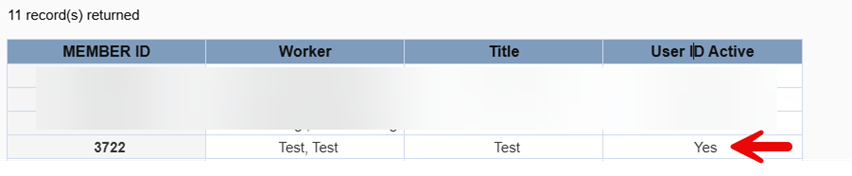
Worker search results table showing 11 record(s) returned, with columns for MEMBER ID, Worker, Title, and User ID Active. A red arrow points to “Yes” in the User ID Active column for a selected worker.
  1. Hover over “File”
    Select “Save and Close Notes”
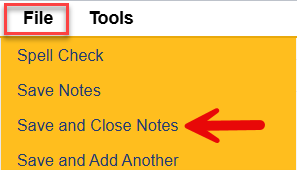
File menu expanded showing options including Spell Check, Save Notes, Save and Close Notes (with red arrow pointing to it), and Save and Add Another.

The RN will receive the notification regarding the visit on their My Harmony Chapter/Members Column/Notes Pane under “Communication”.

Submit a content change request
Report a mistake or suggest an edit