| Provider Type(s) for Which These Instructions Apply | Program(s) for Which These Instructions Apply |
|---|---|
| All Providers | All Programs |
This process applies to Harmony users with a Tickler Pane on their My Harmony chapter. It ensures tasks and follow-ups are managed efficiently and completed on time.
- Go to My Harmony Chapter → Members Column → Ticklers Pane, click on “Ticklers”
*If no Ticklers need review, the Ticklers Pane will not appear.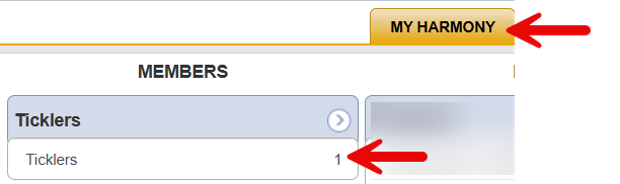
- Click on the first record in the Tickler list
*The Tickler Name may differ from what is shown in the following screenshot.
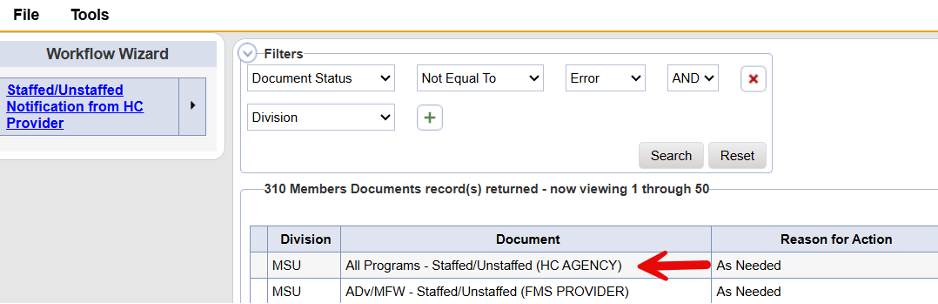
**Clicking on the Tickler opens the Workflow Wizard.
- Click the specific Document in the list that is in need of review
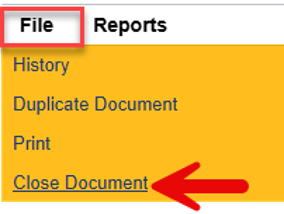
- Hover over “File”, select “Close Document” to return to the “Workflow Wizard”
- If no further action is needed, proceed to Step 6 . If further action is required on the case, skip to Step 7
- Hover over the arrow to the right of the Tickler and select “Complete.”
*Selecting “Complete” records that receipt of the document has been acknowledged.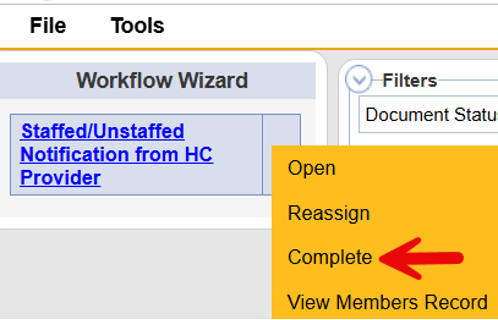
- Hover over the arrow to the right of the Tickler and select “View Members Record”
*Selecting “View Members Record” will allow the user to navigate to the Members Record.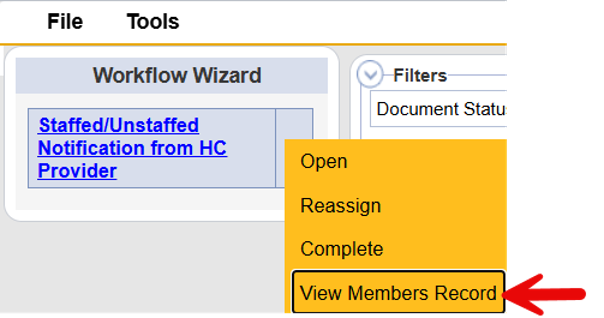
Note: File and Close should be used when closing records that were opened within the member record. If any edits are made to the record, use File and Save and Close. Using either option while navigating will return to the Workflow Wizard, allowing the Tickler to be set to “Complete” and acknowledging receipt of the notification.