| Provider Type(s) for Which These Instructions Apply | Program(s) for Which These Instructions Apply |
|---|---|
| Case Management | All Programs |
This process will be used as a guide for submission of Critical Incident Case Manager Investigations. All Investigations must be completed within 10 business days of entry of the Critical Incident Report.
- From the My Harmony Chapter
Select the PQ Ticket Status listed as “ADV CI – CM Investigative Report Needed” from the Provider Questions column
*The Ticket status may also begin with LC or MFW per the appropriate program for the Member needing the Case Manager Investigation.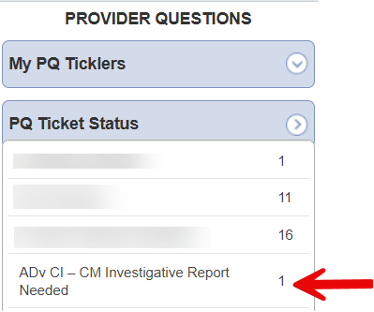
Select the record
- Select “Notes” Sub-Tab
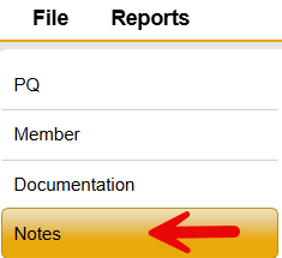
Hover over “File” from the menu bar
Select “Add Note”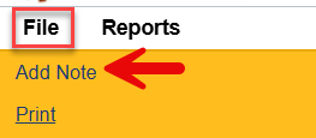
Select Note Sub-Type of “CI – CM Investigative Report in Progress”
Update Status to “Complete”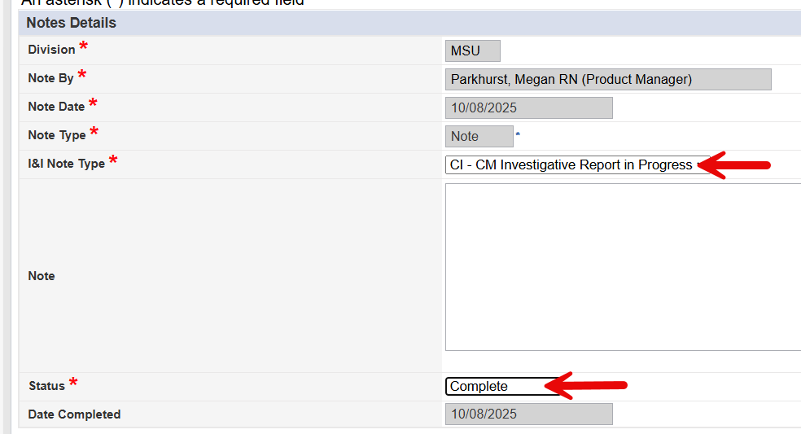
*When the I&I Note Type ‘CI – CM Investigative Report in Progress” is selected and the note is saved and closed, a tickler is automatically sent to the Harmony user’s assigned supervisor as listed on their worker record. Follow Management of Worker Record instructions to update the supervisor listing as needed.
**An additional note with the Note Type ‘CI – Investigation Evidence’ should be added as needed to include any supporting documentation related to the investigation, such as police reports or similar records.
Hover over “File” from the menu bar
Select “Save and Close Note”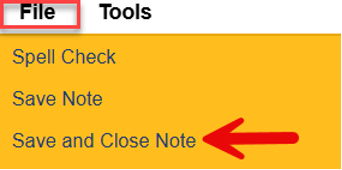
- Select “Documentation” Sub-Tab
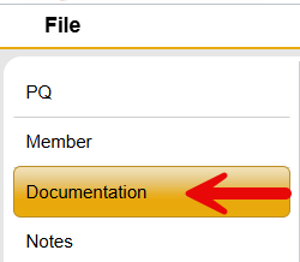
Hover over “File” from the Menu Bar
Select “Add Documentation”
Select “ADv/LC/MFW – Case Manager Investigative Report”
Complete the form with all appropriate information.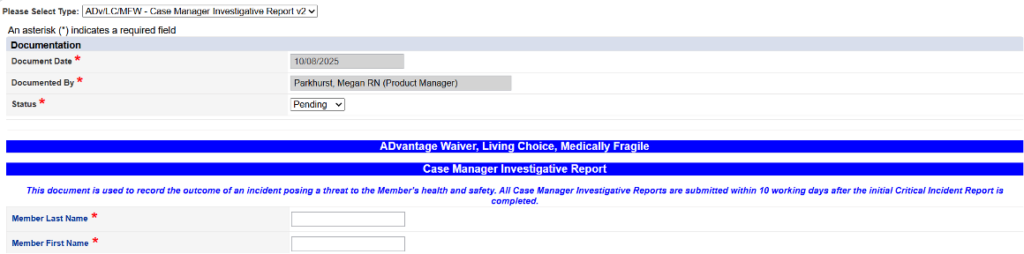
Update the status in the header to “Complete” once all required documentation has been entered.
* The document may be saved with a status of ‘Draft’ if the user needs to pause and gather additional information; however, it must be set to ‘Complete’ before submitting the Critical Incident.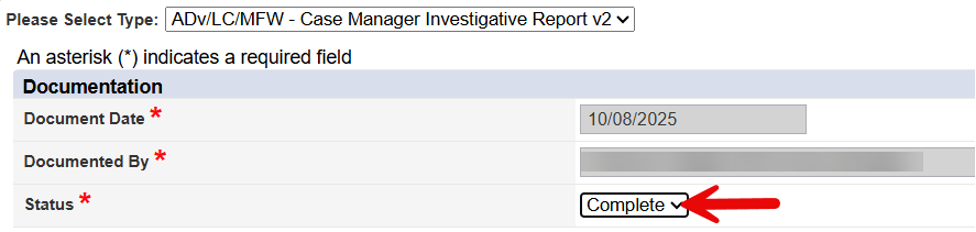
Hover over “File” from the menu bar
Select “Save and Close Documentation”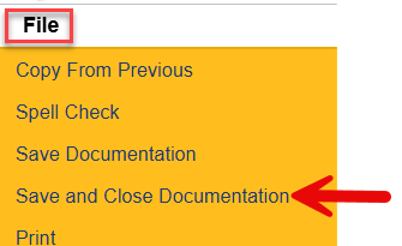
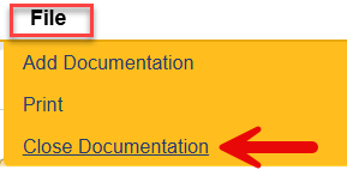
Hover over “File” from the menu bar
Select “Close Documentation” to exit the PQ Ticket