| Provider Type(s) for Which These Instructions Apply | Program(s) for Which These Instructions Apply |
|---|---|
| Case Management Home Care Assisted Living | All Programs |
This process will be used to document Member events, including falls, ER/Urgent Care visits, hospitalizations, medical appointments, service suspensions, and other related incidents.
Guidance for Responsibility of Event History Tab:
- If an Interdisciplinary Team (IDT) visit involves both the Case Manager and the Home Care/Assisted Living Nurse, the Case Manager is responsible for completing any necessary updates to the Event History tab in the Member’s record.
- If a visit is conducted by a single discipline (either the Case Manager or the Home Care/Assisted Living Nurse), the individual conducting the visit is responsible for updating the Event History tab, as appropriate.
Entry of New Event
- Navigate to the Event History Tab

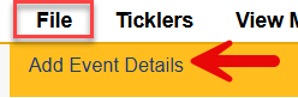
- Hover over “File”
Select “Add Event Details”
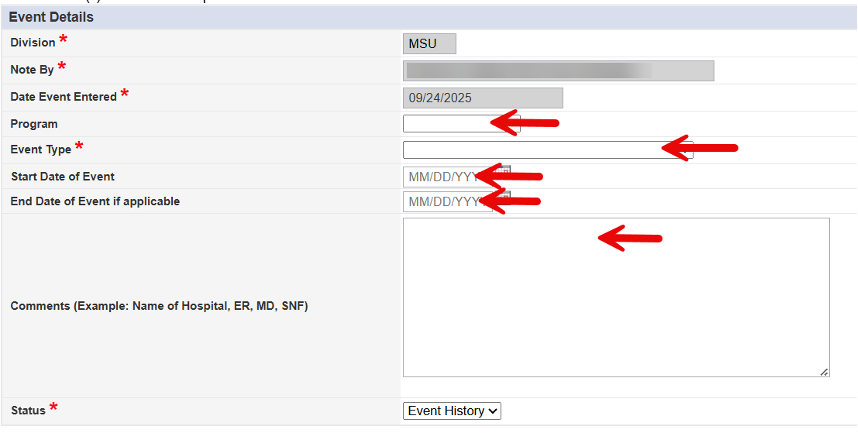
- Complete the blank field(s) of the record
- Select the appropriate Program
- Select the appropriate Event Type
- Enter the Start Date of the Event
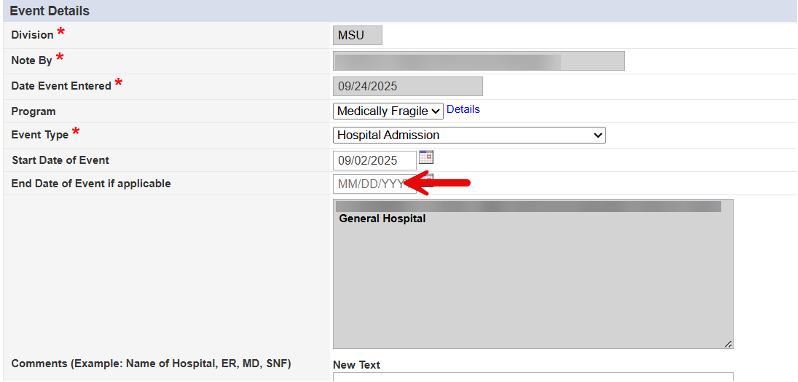
- Enter the End Date of Event, if applicable
*If the Member is in the hospital (or other facility), the End Date may be left blank but must be updated once the Discharge Date is known. - Enter “Comments” to identify the Name of the Hospital, MD, or other specific details regarding the Event.
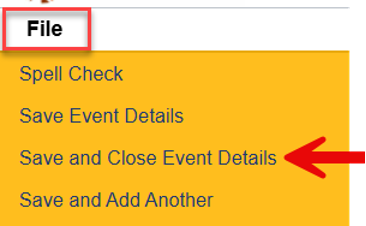
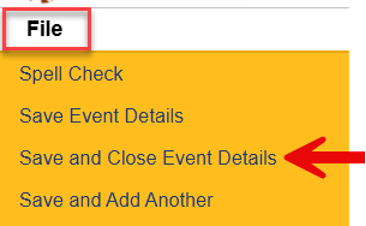
- Hover over “File”
Select “Save and Close Event Details”
Reminders
- ADvantage and SPPC cases – “Fall or Injury REQUIRING Medical Attention” must have a Critical Incident Submitted.
- Medically Fragile and Living Choice cases – “Fall or Injury REQUIRING Medical Attention” AND “Fall or other Injury that DOES NOT REQUIRE Medical Attention” must have a Critical Incident Submitted.
Update of Existing Event
- Navigate to the Event History Tab

- Select the Event record in need of an update.

- If the Event record was created in error, follow step 4
If the Event record needs updated to include an end date or other information, follow step 5
- Update “Status” to “Error”

Hover over “File”
Select “Save and Close Event Details”
- Add End Date of Event, or update other fields as appropriate
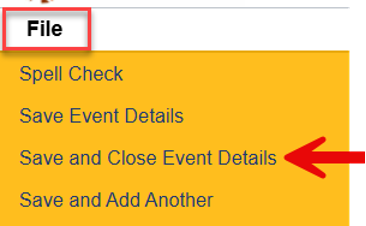
Hover over “File”
Select “Save and Close Event Details”
Reminder
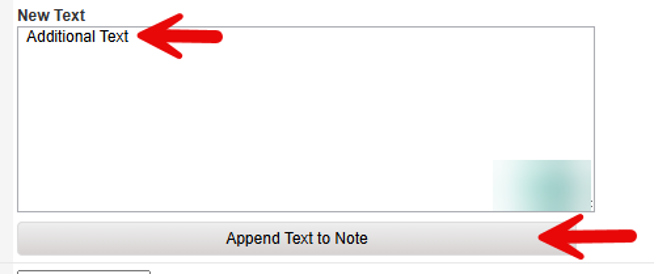
- If “New Text” is entered, “Append Text to Note” must be selected prior to saving the record.