| Provider Type(s) for Which These Instructions Apply | Program(s) for Which These Instructions Apply |
|---|---|
| All Agencies | All Programs |
Provider Case Processor
Each Provider is required to designate a Case Processor in Harmony on the Provider Record. Instructions for changing the Case Processor listed on the Provider Record are provided below.
The Case Processor role is vital to ensure that communications and notifications are received and addressed timely. Providers are required to update the Case Processor listing with a backup Case Processor any time the primary Case Processor is unavailable.
The Case Processor is responsible for the following:
- Monitor Harmony throughout the business day
- Check multiple times throughout the business day for:
- New cases assigned to the Provider.
- Notes and other communications that require action.
- Check multiple times throughout the business day for:
- Set up new cases (All Provider Types)
- Ensure the appropriate Provider staff are aware of the new case.
- Once services have been established, update the Status on the Provider Enrollments Tab of the Member record to “Open”.
- Case Management Providers
- Add the assigned Case Manager to the Division Tab.
- Update the Division Status to “Open”.
- Home Care Providers/Assisted Living Providers
- Add the assigned Nurse to the Division Tab.
- If SPPC, Home Care Provider will update Division Status to “Open”.
- Review of Notes on My Harmony Chapter
- Ensure appropriate Provider staff are included or made aware of any communications where the Case Processor is tagged in a Note and action not able to be completed by the Case Processor is required.
*Per the Conditions of Provider Participation (COPP), all communications and notifications between Providers, and between Providers and the MSU, must be conducted through the electronic system and supplemented verbally when necessary. All communications and notifications must be responded to within three business days.
Backup Case Processor
Providers are responsible for ensuring that communication continues to be monitored when the primary Case Processor is unavailable. The Provider Record should be updated to reflect the backup Case Processor whenever appropriate.
If the Provider Record has not been updated and communications are inadvertently sent to the primary Case Processor while they are out of the office, the following reports may be used by other Provider staff to identify cases and communications requiring attention.
Reports to Use When the Case Processor Is Unavailable
Authorizations New/Changed
- Use this report to identify new or changed authorizations
- This report is particularly helpful when another staff member needs to monitor new assignments while the Case Processor is out of the office.
Unread Notes
- Use this report to identify unread notes and communications that may require action.
- Staff should review the report to ensure that communications are addressed within the required timeframe.
How to Change Case Processor Listed:
- Login to Harmony
Select “Provider Prime”
Click “Go”
- Select the Provider Chapter

- Select your agency from the list view
Note: If you are associated to more than one branch or agency you will see multiple listings in the list view, if you are only associated to one Provider record, the record will automatically open to the Providers Tab.
- Hover over “Edit” on the Menu bar
Select “Edit Provider”
- Click on “Lookup” next to “Case Processor”
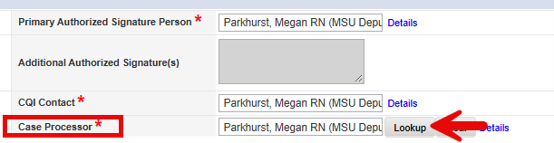
- Type in at minimum the first 3 letters of the worker last name that needs to be assigned as the Case Processor
Click on “Search”
Select the appropriate worker record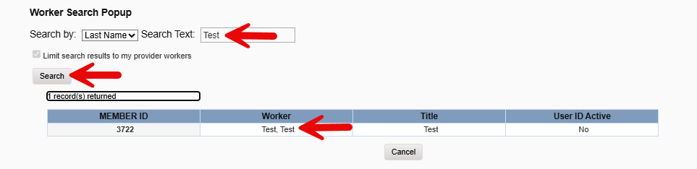
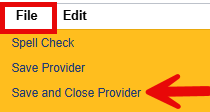
- Hover over “File” on the Menu bar
Select “Save and Close Provider”